> ## Documentation Index
> Fetch the complete documentation index at: https://docs.numeral.com/llms.txt
> Use this file to discover all available pages before exploring further.
# Microsoft Business Central
> Calculate tax on Sales Orders, Invoices, and Credit Memos in Microsoft Business Central.
The Numeral Tax extension for Business Central calculates tax on Sales Orders, Sales Invoices, and Sales Credit Memos and posts completed transactions to Numeral for filing.
This integration requires Business Central admin access and an installed copy of the Numeral Tax extension from AppSource (or a sandbox copy provided by Numeral).
## What you'll do
1. Install the Numeral Tax extension
2. Open **Numeral Tax Setup** and enter your API key
3. Configure the placeholder Tax Jurisdiction and Tax Area
4. Assign the **Numeral Tax - Admin** permission set to your operators
5. Test on a Sales Order, Invoice, or Credit Memo
***
## 1. Install the Numeral Tax extension
Install the **Numeral Tax** extension from Microsoft AppSource, or sideload the `.app` file Numeral provides. After installation, search for **Numeral Tax Setup** in the Business Central search bar.
## 2. Configure Numeral Tax Setup
Open **Numeral Tax Setup** and complete the following fields.
| Field | Value |
| ------------------------------------ | -------------------------------------------------------------------------- |
| **API Key** | A `sk_test_*` or `sk_prod_*` key from your Numeral dashboard |
| **API Endpoint** | `https://business-central-integration.numeralhq.com` |
| **Test Mode** | Enable while you're validating the integration |
| **Sync Products** | Enable to push your item catalog to Numeral |
| **Backfill Historical Transactions** | Enable to send existing posted invoices for tax calculation |
| **Numeral Tax Jurisdiction** | The placeholder jurisdiction to use on sales documents (created in step 3) |
| **Numeral Tax Area** | The placeholder tax area to use on sales documents (created in step 3) |
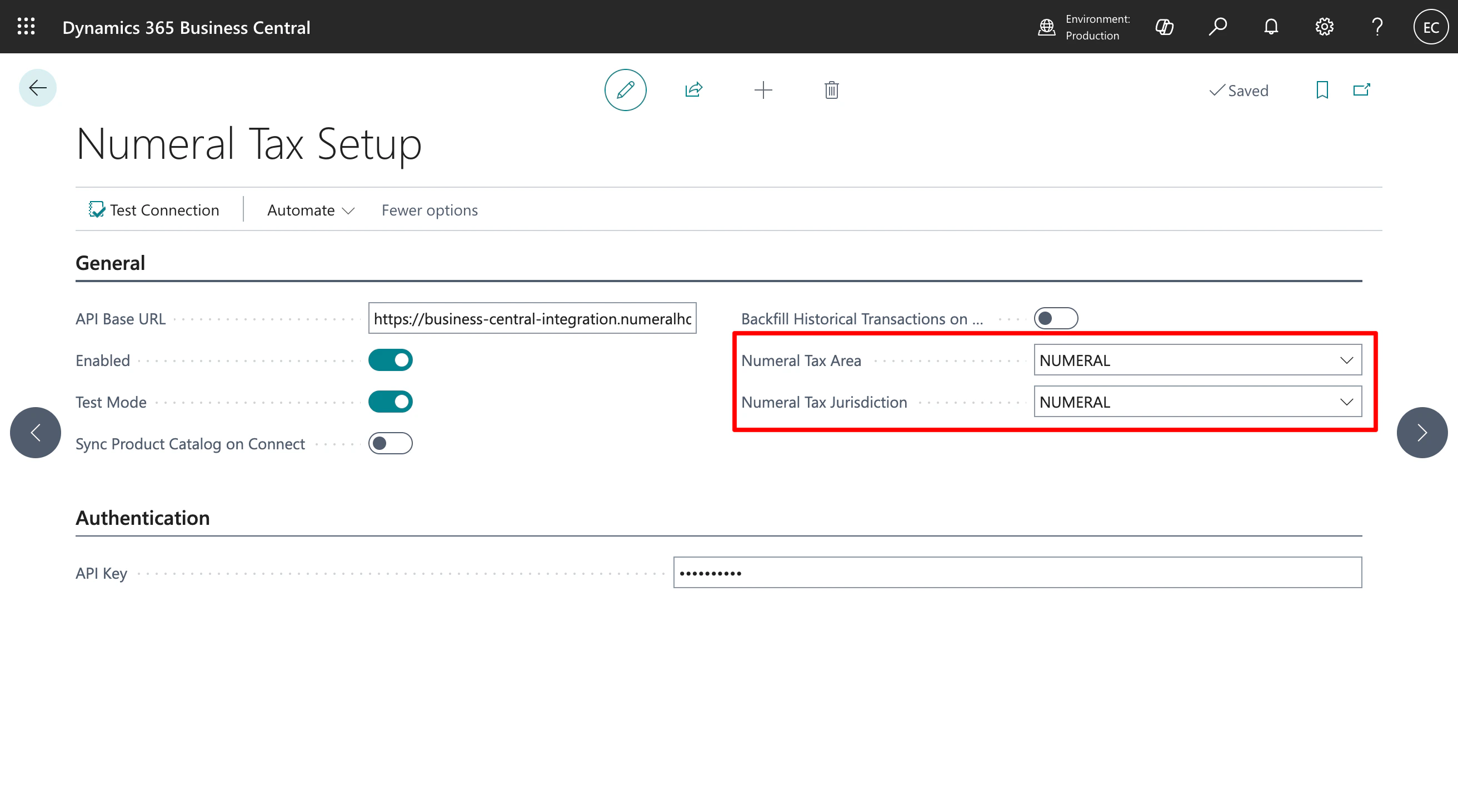 ## 3. Configure the Tax Jurisdiction and Tax Area
Business Central requires every taxable line to reference a Tax Area. Numeral overrides the calculated amount, but the records must still exist.
1. Search for **Tax Jurisdictions** and create a new entry called `NUMERAL`
2. Search for **Tax Areas** and create a new entry called `NUMERAL` containing the `NUMERAL` jurisdiction
3. Reference both in the **Numeral Tax Setup** screen from step 2
## 4. Assign the permission set
Numeral ships a permission set named **Numeral Tax - Admin**. Assign it to every user who creates or posts sales documents.
Search for **User Permission Sets** → select your user → add **Numeral Tax - Admin**.
## 5. Test the integration
Create a Sales Order, Sales Invoice, or Sales Credit Memo with a customer in a US tax jurisdiction. The **Tax Status** field on the document header indicates the calculation state:
| Status | Meaning |
| ---------------------- | --------------------------------------------------------- |
| **Pending** (amber) | The document has changed and tax needs to be recalculated |
| **Calculated** (green) | Numeral has returned a successful calculation |
Tax is recalculated automatically when you change line items, quantities, prices, or the customer's address. Recalculation **updates the existing calculation** — Numeral does not create duplicate calculations.
When you post the document, Numeral records it as a transaction. If you later **cancel** a posted invoice in Business Central, Numeral automatically voids the corresponding transaction.
## Supported documents
| Document | Calculation | Posting |
| ----------------- | ----------- | ------- |
| Sales Order | ✓ | ✓ |
| Sales Invoice | ✓ | ✓ |
| Sales Credit Memo | ✓ | ✓ |
## Tax Exemption Certificates
To request a tax exemption certificate for a customer, navigate to the **Customer Profile** screen in Business Central. [View demo](https://www.loom.com/share/9062a4ff20cc49059d24d0a23508e8e0)
## Troubleshooting
Confirm the API Key is valid and the document has a complete shipping address. Check **Numeral Tax Setup → Connection Test** to validate the API key.
This is expected when a document is unposted or modified. Open the document and trigger a recalculation by editing any line.
Confirm the cancellation reached **Posted Status: Canceled** in Business Central. If the cancellation is still pending approval, the void will fire after approval completes.
Assign the **Numeral Tax - Admin** permission set to the user. Posting requires write access to the Numeral integration tables.
## 3. Configure the Tax Jurisdiction and Tax Area
Business Central requires every taxable line to reference a Tax Area. Numeral overrides the calculated amount, but the records must still exist.
1. Search for **Tax Jurisdictions** and create a new entry called `NUMERAL`
2. Search for **Tax Areas** and create a new entry called `NUMERAL` containing the `NUMERAL` jurisdiction
3. Reference both in the **Numeral Tax Setup** screen from step 2
## 4. Assign the permission set
Numeral ships a permission set named **Numeral Tax - Admin**. Assign it to every user who creates or posts sales documents.
Search for **User Permission Sets** → select your user → add **Numeral Tax - Admin**.
## 5. Test the integration
Create a Sales Order, Sales Invoice, or Sales Credit Memo with a customer in a US tax jurisdiction. The **Tax Status** field on the document header indicates the calculation state:
| Status | Meaning |
| ---------------------- | --------------------------------------------------------- |
| **Pending** (amber) | The document has changed and tax needs to be recalculated |
| **Calculated** (green) | Numeral has returned a successful calculation |
Tax is recalculated automatically when you change line items, quantities, prices, or the customer's address. Recalculation **updates the existing calculation** — Numeral does not create duplicate calculations.
When you post the document, Numeral records it as a transaction. If you later **cancel** a posted invoice in Business Central, Numeral automatically voids the corresponding transaction.
## Supported documents
| Document | Calculation | Posting |
| ----------------- | ----------- | ------- |
| Sales Order | ✓ | ✓ |
| Sales Invoice | ✓ | ✓ |
| Sales Credit Memo | ✓ | ✓ |
## Tax Exemption Certificates
To request a tax exemption certificate for a customer, navigate to the **Customer Profile** screen in Business Central. [View demo](https://www.loom.com/share/9062a4ff20cc49059d24d0a23508e8e0)
## Troubleshooting
Confirm the API Key is valid and the document has a complete shipping address. Check **Numeral Tax Setup → Connection Test** to validate the API key.
This is expected when a document is unposted or modified. Open the document and trigger a recalculation by editing any line.
Confirm the cancellation reached **Posted Status: Canceled** in Business Central. If the cancellation is still pending approval, the void will fire after approval completes.
Assign the **Numeral Tax - Admin** permission set to the user. Posting requires write access to the Numeral integration tables.