> ## Documentation Index
> Fetch the complete documentation index at: https://docs.numeral.com/llms.txt
> Use this file to discover all available pages before exploring further.
# Sage Intacct
> Calculate and record sales tax on AR Invoices, Payments, and Adjustments in Sage Intacct.
The Numeral integration for Sage Intacct uses Web Services and Smart Events to capture invoice, payment, and adjustment activity and write tax results back to your invoices.
You must be a Sage Intacct administrator to complete this setup. The integration is provisioned per company entity.
## What you'll do
1. Enable Web Services on your Sage Intacct subscription
2. Authorize the Numeral and Rutter sender IDs
3. Create a Web Services user (`numeral_ws`) with the required permissions
4. Connect Sage Intacct to Numeral
5. Create custom fields on `ARINVOICE` and `ARINVOICEITEM`
6. Configure Smart Events to push events to Numeral
7. Update your invoice print template to include tax detail
***
## 1. Enable Web Services
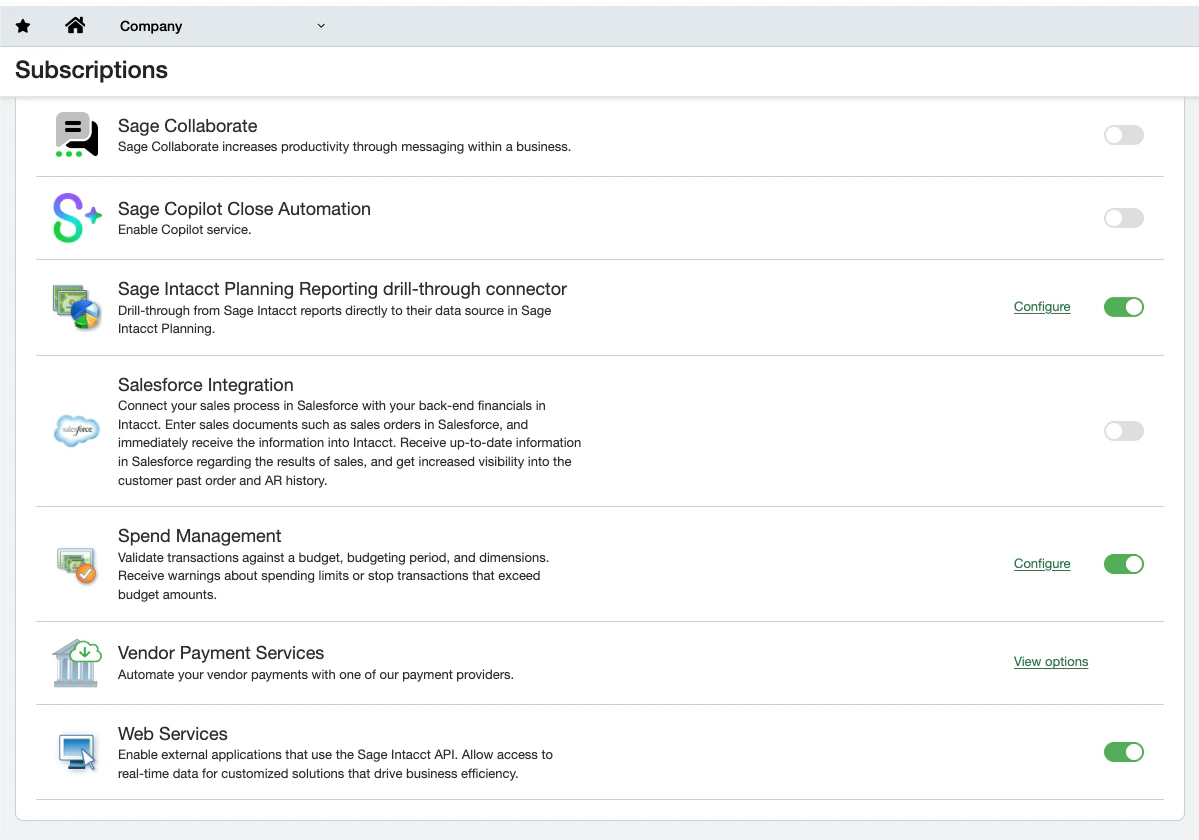
In Sage Intacct, navigate to **Company → Subscriptions** and ensure **Web Services** is subscribed.
 ## 2. Authorize sender IDs
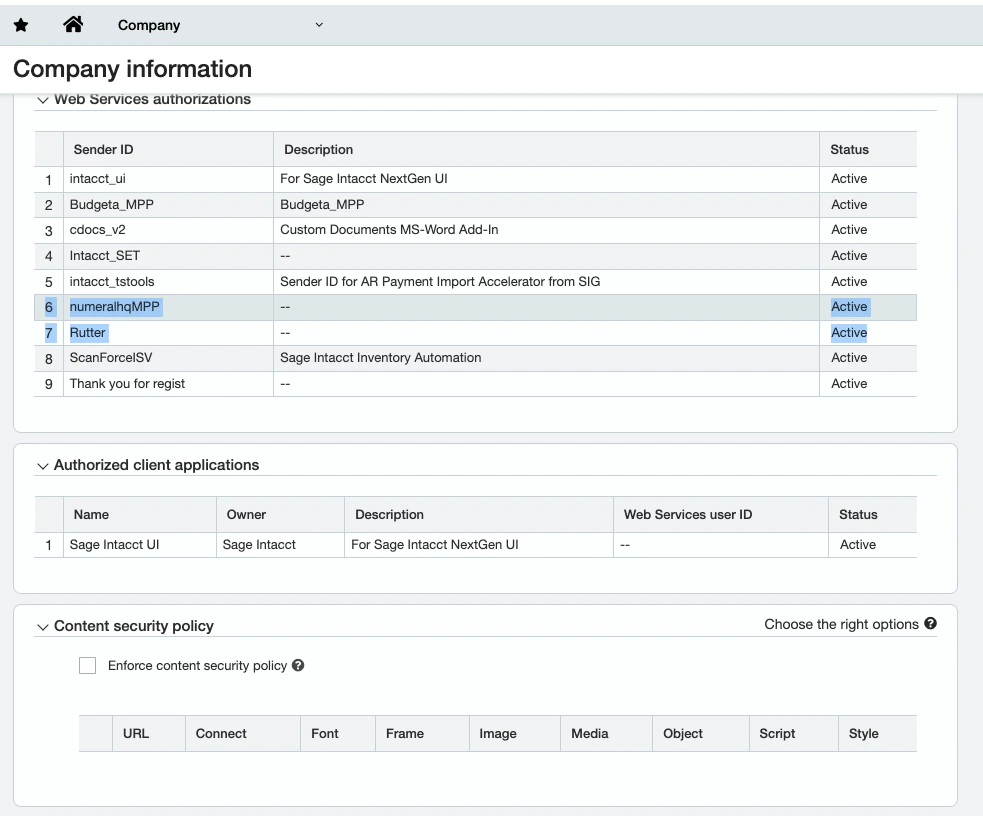
Go to **Company → Setup → Company → Security tab → Web Services authorizations**, then add the following sender IDs:
* `numeralhqMPP`
* `Rutter`
## 2. Authorize sender IDs
Go to **Company → Setup → Company → Security tab → Web Services authorizations**, then add the following sender IDs:
* `numeralhqMPP`
* `Rutter`
 ## 3. Create the Web Services user
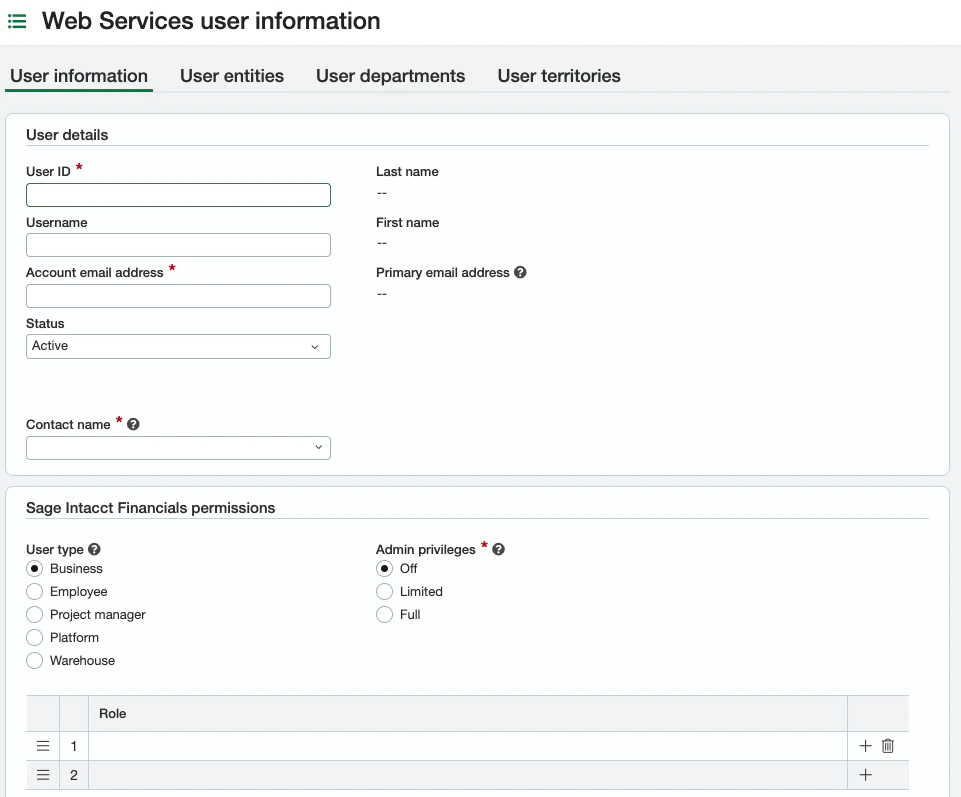
Create a Web Services user with login ID `numeral_ws`. Assign the role permissions below.
| Module | Permission |
| ------------------- | ------------ |
| Accounts Receivable | Read / Write |
| Inventory Control | Read |
| Company | Read |
## 3. Create the Web Services user
Create a Web Services user with login ID `numeral_ws`. Assign the role permissions below.
| Module | Permission |
| ------------------- | ------------ |
| Accounts Receivable | Read / Write |
| Inventory Control | Read |
| Company | Read |
 Save the password securely — Sage Intacct will not display it again. You'll provide this user ID and password to Numeral in the next step.
## 4. Connect Sage Intacct to Numeral
In your Numeral dashboard, go to **Settings → Integrations → Sage Intacct** and provide:
* **Company ID** — your Sage Intacct company ID
* **Web Services User ID** — `numeral_ws`
* **Web Services Password** — the password you set for the user
Numeral will validate the credentials immediately. If validation fails, double-check that Web Services is subscribed and the sender IDs are authorized.
## 5. Create custom fields
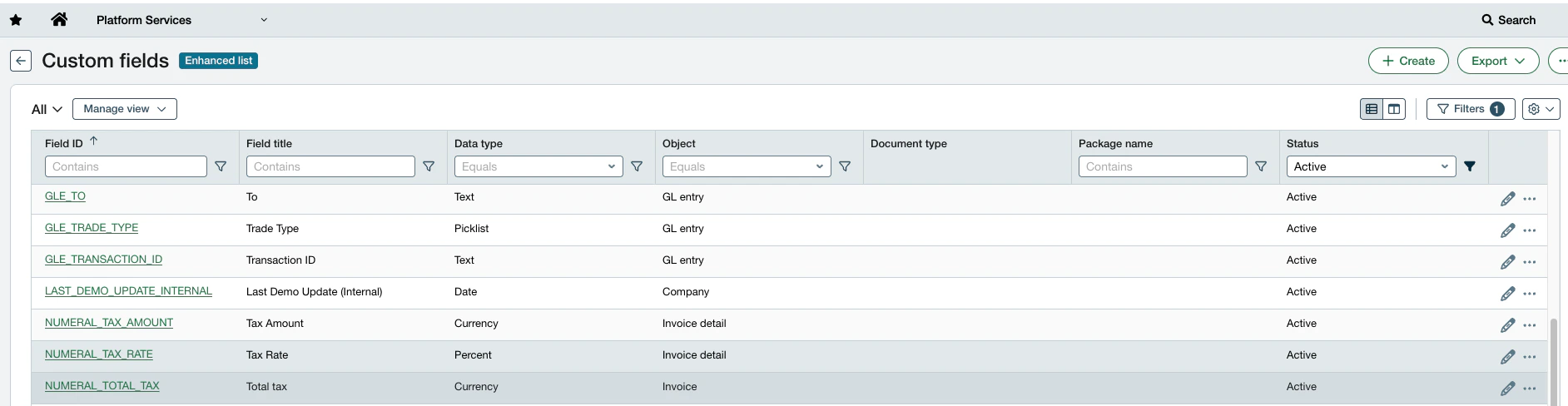
Numeral writes tax results into custom fields on the invoice and line items. Create the fields below under **Platform Services → Custom Fields**.
**On `ARINVOICE`:**
| Field ID | Label | Data Type |
| ------------------- | ----------------- | --------- |
| `NUMERAL_TOTAL_TAX` | Numeral Total Tax | Decimal |
**On `ARINVOICEITEM`:**
| Field ID | Label | Data Type |
| -------------------- | ------------------ | --------- |
| `NUMERAL_TAX_AMOUNT` | Numeral Tax Amount | Decimal |
| `NUMERAL_TAX_RATE` | Numeral Tax Rate | Decimal |
Save the password securely — Sage Intacct will not display it again. You'll provide this user ID and password to Numeral in the next step.
## 4. Connect Sage Intacct to Numeral
In your Numeral dashboard, go to **Settings → Integrations → Sage Intacct** and provide:
* **Company ID** — your Sage Intacct company ID
* **Web Services User ID** — `numeral_ws`
* **Web Services Password** — the password you set for the user
Numeral will validate the credentials immediately. If validation fails, double-check that Web Services is subscribed and the sender IDs are authorized.
## 5. Create custom fields
Numeral writes tax results into custom fields on the invoice and line items. Create the fields below under **Platform Services → Custom Fields**.
**On `ARINVOICE`:**
| Field ID | Label | Data Type |
| ------------------- | ----------------- | --------- |
| `NUMERAL_TOTAL_TAX` | Numeral Total Tax | Decimal |
**On `ARINVOICEITEM`:**
| Field ID | Label | Data Type |
| -------------------- | ------------------ | --------- |
| `NUMERAL_TAX_AMOUNT` | Numeral Tax Amount | Decimal |
| `NUMERAL_TAX_RATE` | Numeral Tax Rate | Decimal |
 ## 6. Configure Smart Events
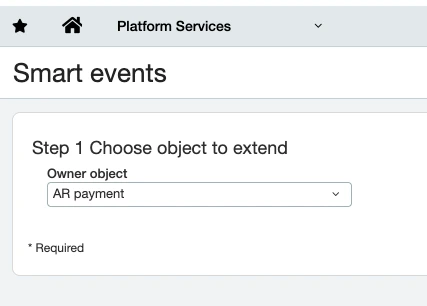
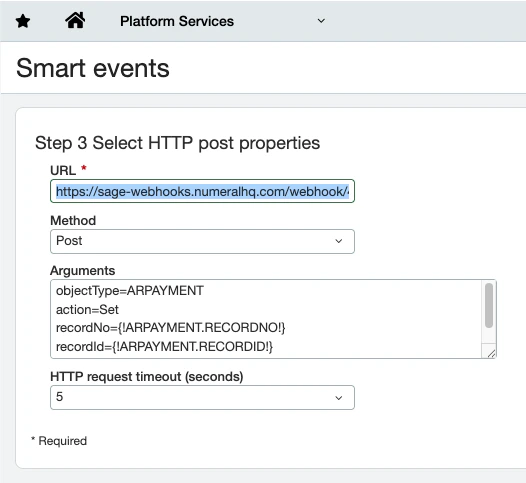
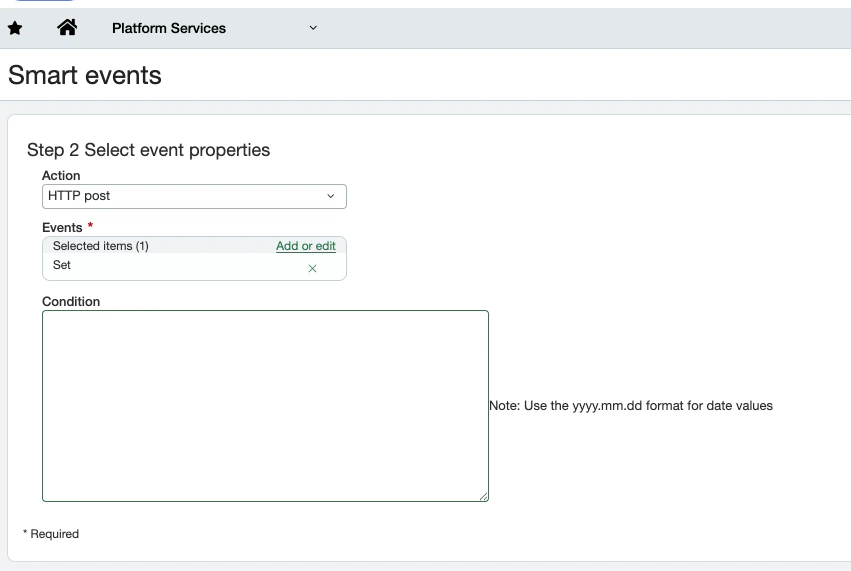
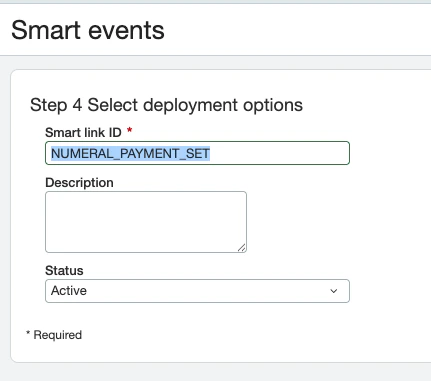
Smart Events tell Sage Intacct to notify Numeral when invoices, payments, or adjustments change. Each Smart Event is an **HTTP post** with a **timeout of 5 seconds** and **status Active**.
Configure the eight required Smart Events listed below, plus the optional `ITEM` events if you want product changes synced to Numeral automatically.
### Required Smart Events
| Object | Action |
| -------------- | ------ |
| `ARINVOICE` | Add |
| `ARINVOICE` | Set |
| `ARINVOICE` | Delete |
| `ARPAYMENT` | Add |
| `ARPAYMENT` | Set |
| `ARADJUSTMENT` | Add |
| `ARADJUSTMENT` | Set |
| `ARADJUSTMENT` | Delete |
### Optional Smart Events
| Object | Action |
| ------ | ------ |
| `ITEM` | Add |
| `ITEM` | Set |
| `ITEM` | Delete |
### Smart Event configuration
For each Smart Event, use this argument template (replace the object name and action accordingly):
```text wrap theme={null}
objectType=ARINVOICE
action=Add
recordNo={!ARINVOICE.RECORDNO!}
recordId={!ARINVOICE.RECORDID!}
megaEntityId={!ARINVOICE.MEGAENTITYID!}
```
The endpoint URL and authorization header will be provided by Numeral during onboarding.
## 6. Configure Smart Events
Smart Events tell Sage Intacct to notify Numeral when invoices, payments, or adjustments change. Each Smart Event is an **HTTP post** with a **timeout of 5 seconds** and **status Active**.
Configure the eight required Smart Events listed below, plus the optional `ITEM` events if you want product changes synced to Numeral automatically.
### Required Smart Events
| Object | Action |
| -------------- | ------ |
| `ARINVOICE` | Add |
| `ARINVOICE` | Set |
| `ARINVOICE` | Delete |
| `ARPAYMENT` | Add |
| `ARPAYMENT` | Set |
| `ARADJUSTMENT` | Add |
| `ARADJUSTMENT` | Set |
| `ARADJUSTMENT` | Delete |
### Optional Smart Events
| Object | Action |
| ------ | ------ |
| `ITEM` | Add |
| `ITEM` | Set |
| `ITEM` | Delete |
### Smart Event configuration
For each Smart Event, use this argument template (replace the object name and action accordingly):
```text wrap theme={null}
objectType=ARINVOICE
action=Add
recordNo={!ARINVOICE.RECORDNO!}
recordId={!ARINVOICE.RECORDID!}
megaEntityId={!ARINVOICE.MEGAENTITYID!}
```
The endpoint URL and authorization header will be provided by Numeral during onboarding.
 ## 7. Update your invoice print template
So that calculated tax appears on invoices sent to customers, edit your AR Invoice print template to reference the `NUMERAL_TOTAL_TAX` field on the invoice and the `NUMERAL_TAX_AMOUNT` and `NUMERAL_TAX_RATE` fields on each line item.
When saving the template in Microsoft Word, save it as **`.doc`** (Word 97-2003) — Sage Intacct does **not** accept `.docx` print templates.
## Verification
After setup, create a test invoice in Sage Intacct. Numeral will:
1. Receive the Smart Event
2. Calculate tax for the line items
3. Write the totals back to the custom fields on the invoice
## 7. Update your invoice print template
So that calculated tax appears on invoices sent to customers, edit your AR Invoice print template to reference the `NUMERAL_TOTAL_TAX` field on the invoice and the `NUMERAL_TAX_AMOUNT` and `NUMERAL_TAX_RATE` fields on each line item.
When saving the template in Microsoft Word, save it as **`.doc`** (Word 97-2003) — Sage Intacct does **not** accept `.docx` print templates.
## Verification
After setup, create a test invoice in Sage Intacct. Numeral will:
1. Receive the Smart Event
2. Calculate tax for the line items
3. Write the totals back to the custom fields on the invoice
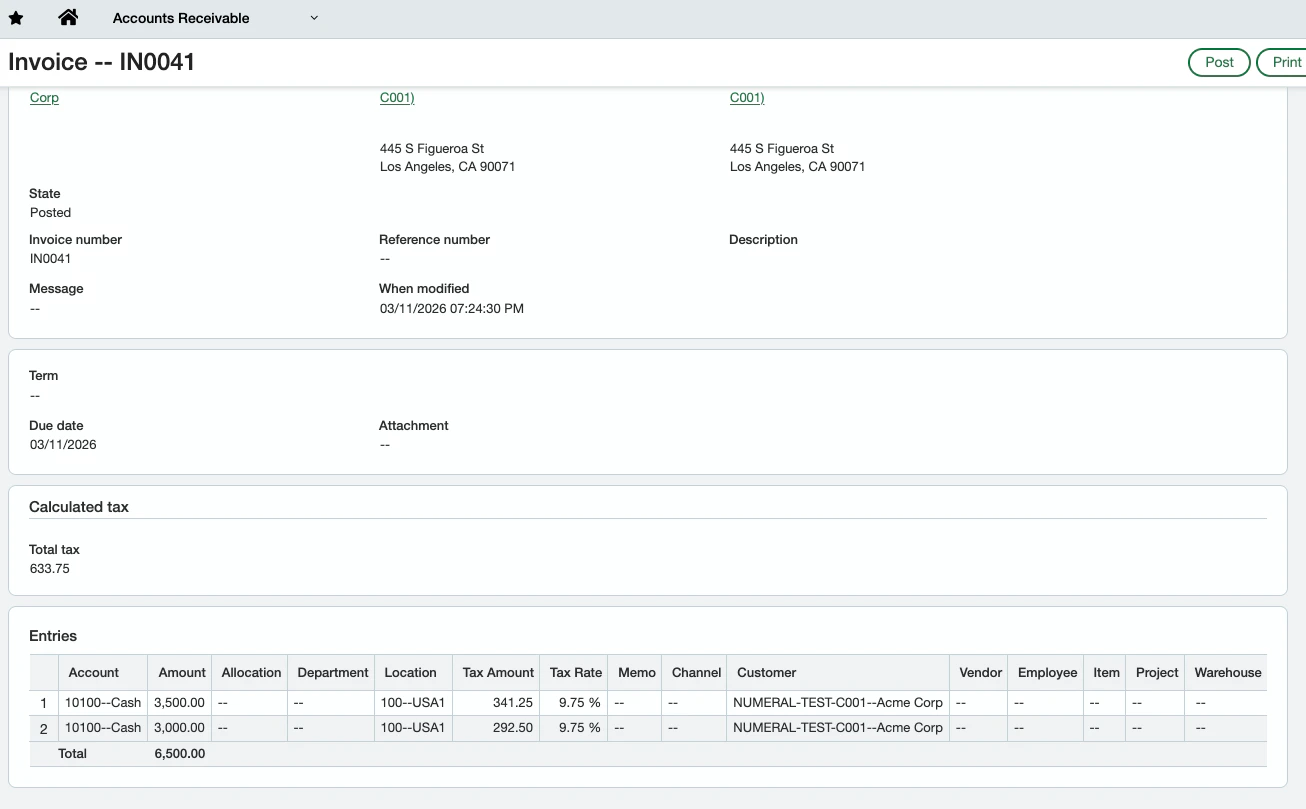
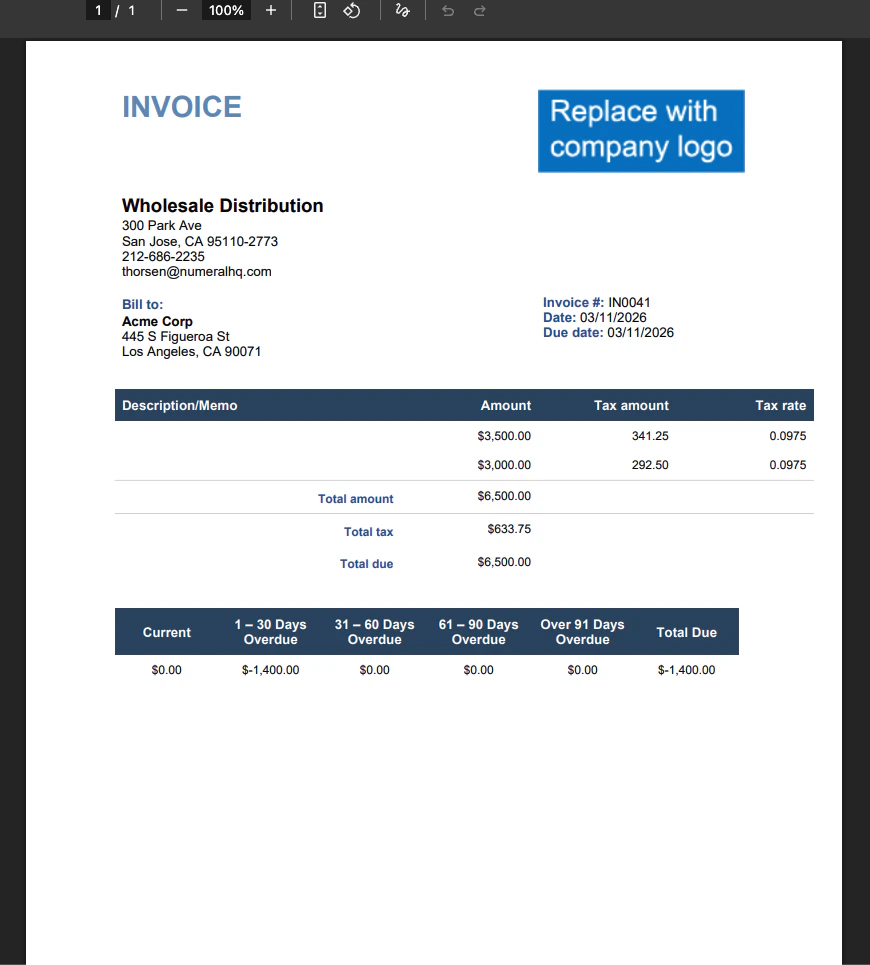 You can confirm the calculation appears in your Numeral dashboard under **Logs**.
## Troubleshooting
Confirm the Smart Event is **Active** and that **Web Services authorizations** include both `numeralhqMPP` and `Rutter`. Sage Intacct will silently drop events from unauthorized senders.
Verify the custom field IDs match exactly: `NUMERAL_TOTAL_TAX`, `NUMERAL_TAX_AMOUNT`, `NUMERAL_TAX_RATE`. Field IDs are case-sensitive.
Save the template as `.doc` (Word 97-2003), not `.docx`. Sage Intacct rejects `.docx` print templates.
Re-validate the `numeral_ws` user has AR Read/Write, Inventory Read, and Company Read permissions. If the password was rotated, update it in your Numeral dashboard under **Settings → Integrations → Sage Intacct**.
You can confirm the calculation appears in your Numeral dashboard under **Logs**.
## Troubleshooting
Confirm the Smart Event is **Active** and that **Web Services authorizations** include both `numeralhqMPP` and `Rutter`. Sage Intacct will silently drop events from unauthorized senders.
Verify the custom field IDs match exactly: `NUMERAL_TOTAL_TAX`, `NUMERAL_TAX_AMOUNT`, `NUMERAL_TAX_RATE`. Field IDs are case-sensitive.
Save the template as `.doc` (Word 97-2003), not `.docx`. Sage Intacct rejects `.docx` print templates.
Re-validate the `numeral_ws` user has AR Read/Write, Inventory Read, and Company Read permissions. If the password was rotated, update it in your Numeral dashboard under **Settings → Integrations → Sage Intacct**.