

- Admin access to your BigCommerce store’s admin panel
- A Numeral account
Numeral offers two ways to connect a BigCommerce store: through the BigCommerce Marketplace app (OAuth), or by connecting directly with API credentials. This guide walks through the API credentials method.
Part 1: Create your API credentials in BigCommerce
Step 1 — Create an API account
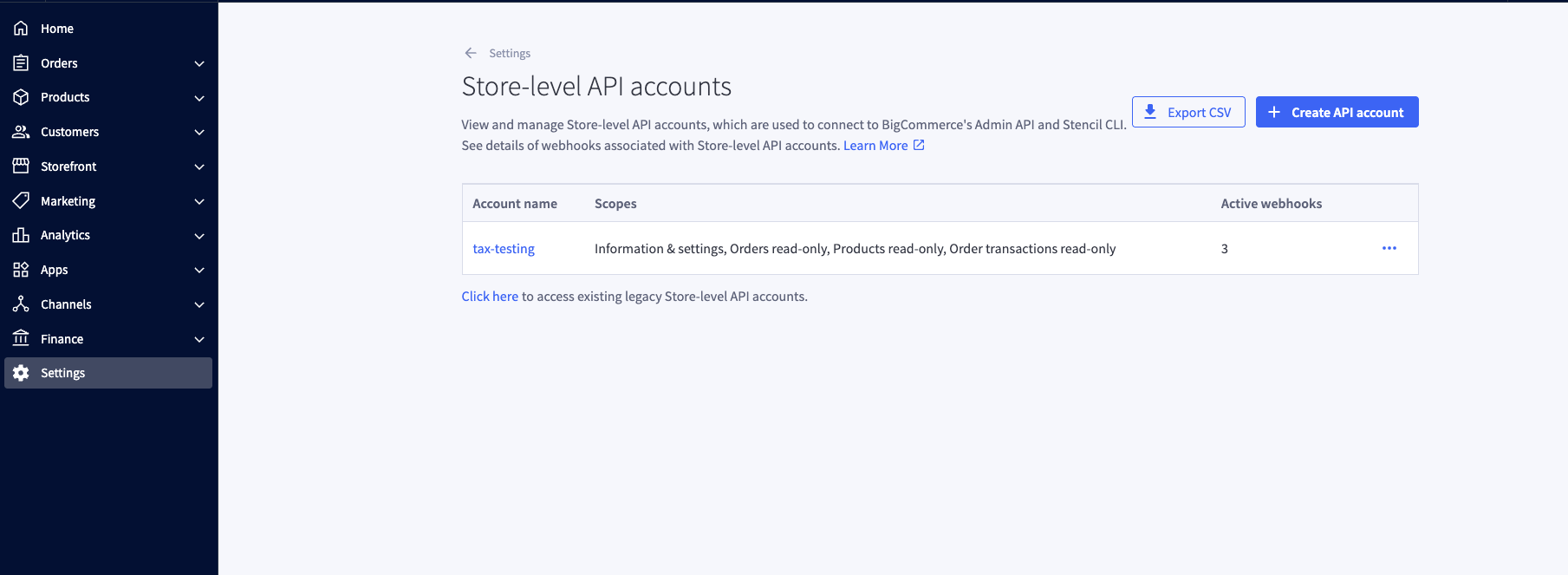
- In your BigCommerce Admin Panel, go to Settings → API → Store-level API accounts.
- Click Create API Account.
Step 2 — Configure the API account
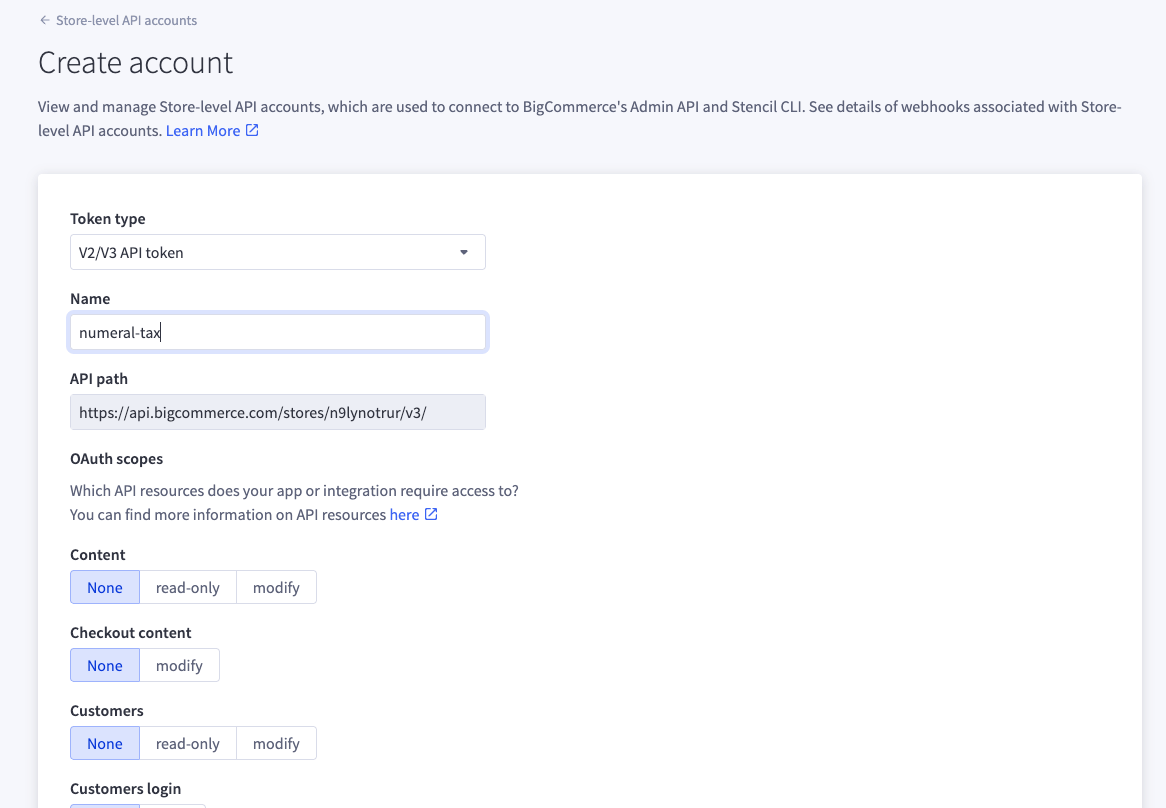
Step 3 — Select the required scopes
Set exactly these scopes — everything else should be left as None:Step 4 — Save and copy your credentials
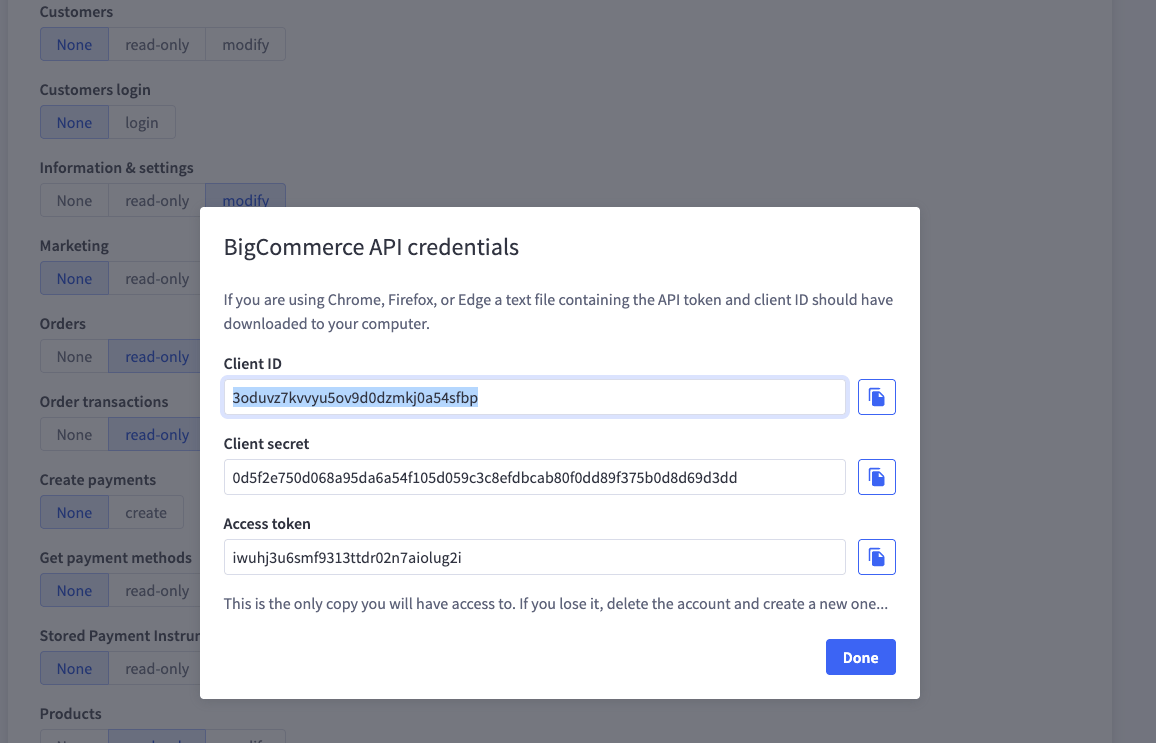
- Click Save.
- BigCommerce displays your credentials — copy both before closing the window:
Part 2: Connect BigCommerce to Numeral
Step 5 — Add a BigCommerce connection
- In the Numeral dashboard, go to Connections.
- Click Add Connection and select BigCommerce.
- Choose Connect with API credentials.
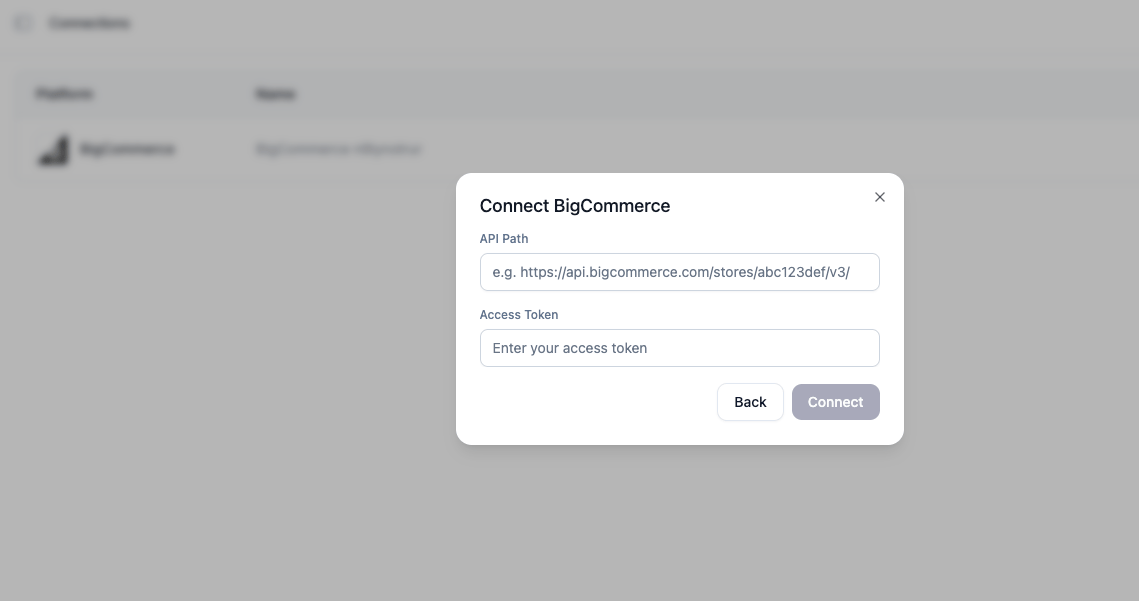
Step 6 — Enter your credentials and connect
Click Connect.
Numeral validates your credentials against BigCommerce, creates the connection, registers itself as your store’s Tax Provider, and starts syncing your product catalog — all automatically. This can take a few minutes to finish.
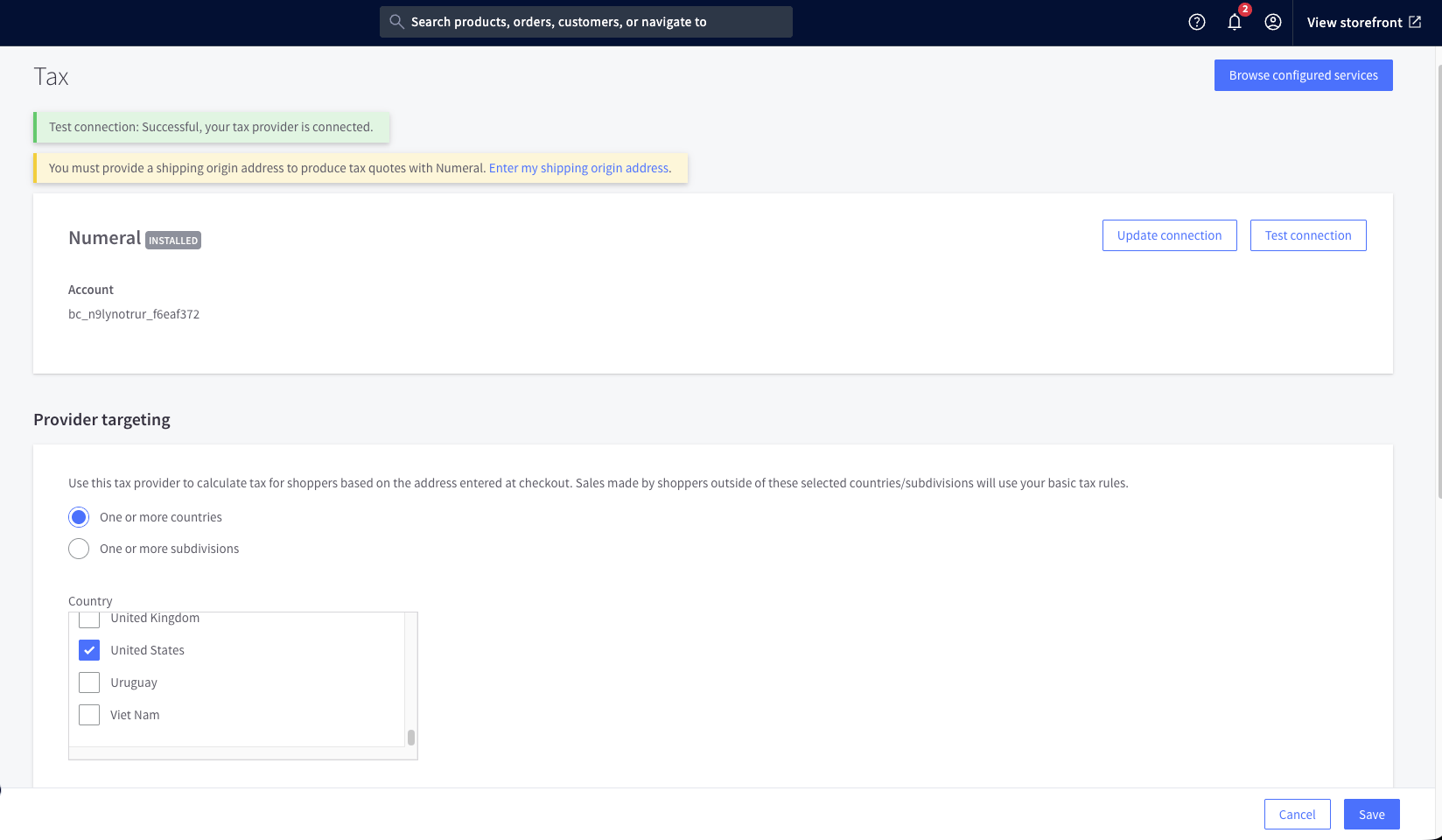
Step 7 — Configure tax targeting in BigCommerce
Once connected, tell Numeral where it should calculate tax:- In BigCommerce Admin, go to Settings → Tax.
- Next to Numeral, click Edit.
- Under Provider targeting, select the countries and subdivisions where Numeral should apply.
How it works
Once connected, Numeral acts as your BigCommerce store’s tax provider:- A customer checks out in your BigCommerce store.
- BigCommerce calls Numeral to calculate tax for the order.
- Numeral returns the tax breakdown, which BigCommerce displays to the customer.
- When the order completes, Numeral commits the transaction for filing.
- Refunds and cancellations are automatically synced back to Numeral as adjustments or voids.
Product Categorization
Correct product categorization is essential for accurate tax calculation. Product categories set in BigCommerce do not carry over to Numeral — categories must be set up directly within your Numeral account. During onboarding, your Onboarding Manager will help set up initial product categories in Numeral and show you how to manage them going forward.Troubleshooting
”Could not verify BigCommerce credentials”
The connection was created, but tax isn’t calculating
- Confirm the Tax Provider registered successfully — check the connection status in your Numeral dashboard.
- In BigCommerce, go to Settings → Tax → Tax Services and confirm Numeral is enabled.
- Confirm the Information & settings: modify scope was selected when you created the API account.